
Student: Dashboard
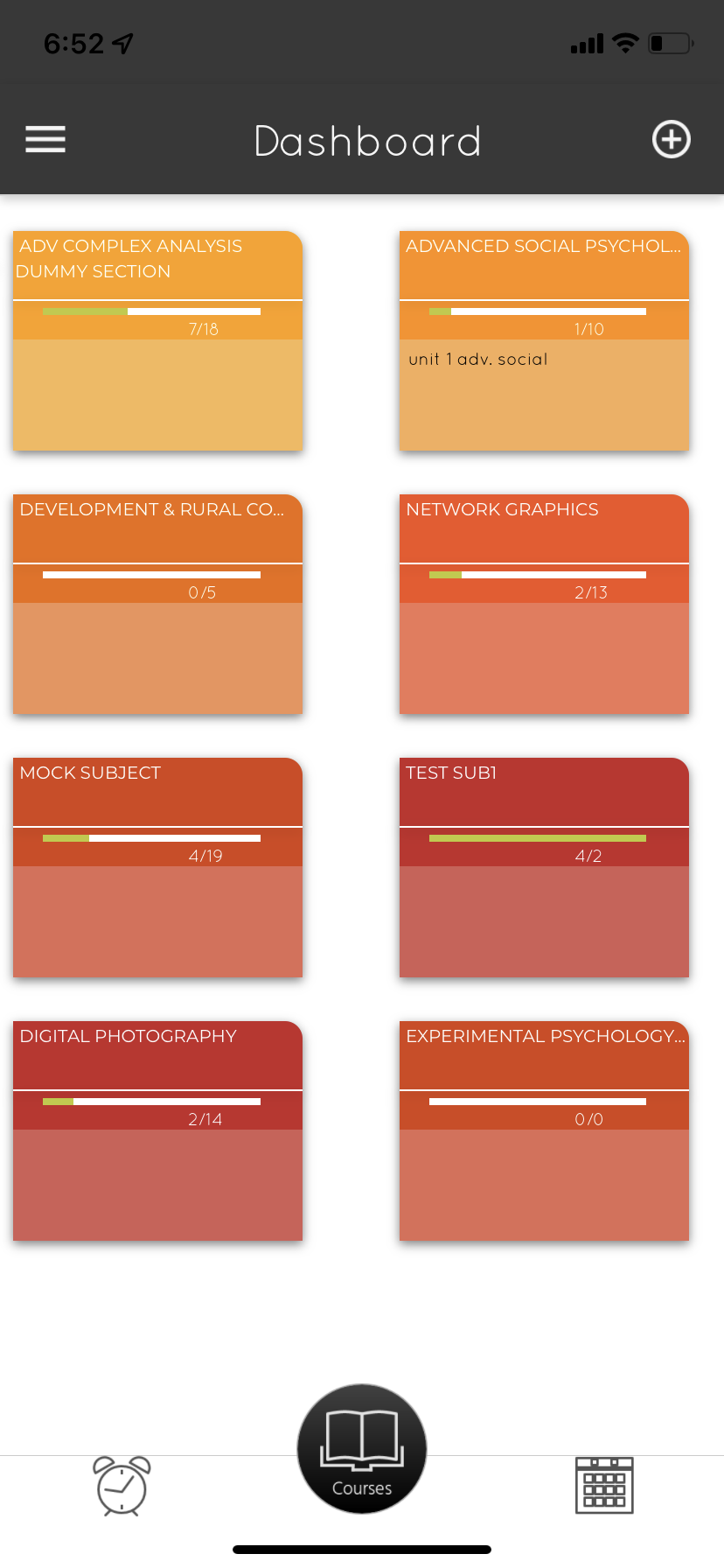 After login, students land on this Dashboard view on their mobile app. This is primarily focused on academics and displays the list of courses that are currently relevant to the student.
The dashboard will be blank with nothing to display when a student has not registered for any course, in instances student course registration is mandatory at the beginning of the term. Where students are automatically promoted to the next term, and the course list is automatically assigned based on Scheme of Instructions, the dashboard will always display the list of courses from the Scheme of Instructions. In case the student logs in when he/she is not part of an active batch, then the dashboard will display an empty page with the alert message “No Approved Courses to Display”.
Pre-requisites:
- User should be logged in.
- Student should be part of an active batch(ongoing semester)
Configurations that impact this screen:
- Course Registration Settings
Description of fields: A folder is presented for each course for the student. The folder is touchable and takes the user to Course Home display, which presents details of each course.
On this screen, each folder representing a course displays the following information.
- Course Name(Subject Name)
- Number of classes conducted out of number of classes planned as per on timetable
- The topic taught in the last class
A '+' icon on the top right allows the student to register for courses. This is only enabled at Institutions that have a mandatory course registration requirement at the beginning of the semester. See tutorial on Course Registration for more details.
The icons on the bottom of the screen take the user to view Alerts(bottom left) and Schedule(bottom right)
Suggested Tutorials:
- Course Registration
- Lesson Planner
FAQs:
- I have logged in but there is nothing to see. Why?
There can be a few reasons.
- It could be that your internet connection is slow or the server on our end is slow in responding, in which case the dashboard should load in a few seconds.
- Another reason could be that you are not in an active term or
- your term is not assigned any courses yet or
- or you have not registered for courses yet.
- I have registered for a course, but it is not displayed on the dashboard. Why?
- The registered course may have not been approved by the administrator.
- I do not see the topics taught in the last class (or is it the next class?). Why?
- Maybe the faculty have not entered the last topic taught while marking the attendance.
- I do not see the number of classes planned. Why?
- Maybe the timetable is not defined yet or the lesson planner is not created yet.
- I do not see the number of classes conducted. Why?
- Maybe the faculty have not entered the attendance yet.